
How to back up your Squarespace author website
I had an email from one of my most recent website clients recently asking me if there was anything she should be doing to back up her new website.
And I realised that this was the first time I’d been asked this question - so I thought it was worth a blog post!
If you have an author website on Squarespace, the good news is that it is actually very stable and secure.
The less good news is that Squarespace does not offer a big shiny button labelled ‘Download a full backup of my site please’. So backing up looks a little different than it does on WordPress.
Honestly, this is not something I lose sleep over. I trust Squarespace!
However, it’s never a bad thing to be cautious.
So in this post I’m going to walk you through sensible, low-stress ways to back up your Squarespace author website so you know you have nothing to fear.
First, what does ‘backing up’ mean on Squarespace?
On a self-hosted site, backing up usually means downloading a copy of the entire site in one go. Files, database, everything. Squarespace does not work like that.
Your site lives on Squarespace’s servers. They handle hosting, security, and their own internal backups. You can’t download the full site in a single file, and you don’t need to.
What you can do is back up the things that matter most to you as an author, such as content you have written, images you have uploaded, your mailing list data and any custom code.
Think of this less as cloning your site and more as keeping a copy of your work.
The most important things to back up on an author website
Before we get into the how, let’s talk about the what. For most authors, the key things worth backing up are:
• Your written content (pages and blog posts)
• Your images and media
• Your email list
• Any custom code
• A record of your site structure and design, including the fonts you’ve used and the hex codes of any colours
Backing up your pages and blog posts
Squarespace lets you export some content, but with limitations.
Exporting blog posts
If you have a blog on your author website, you can export it.
Go to:
Settings → Website > Import & Export Content → Export
Choose WordPress as the export format. You are not actually moving to WordPress. This is just the format Squarespace uses.
This will download an XML file containing:
• Blog posts
• Blog categories
• Blog comments (if you have them)
This is a very good thing to do a few times a year, or whenever you publish something particularly important.
A couple of caveats:
• Images are not neatly packaged. They may be linked, not embedded.
• Static pages are not included.
Still, this is the closest thing Squarespace offers to a traditional export.
Saving static pages
Regular pages like About, Books, Events, Contact do not export in the same way. For these, you have a few practical options.
The simplest is to copy and paste the text into a document.
I know! It sounds basic. It is also very effective.
Create a single folder on your computer called something like “Website content backup” and keep:
• A Google Doc or Word file with page text
• Headings and subheadings
• Any links or call-to-action copy
If you ever needed to rebuild your site, having the words ready to go is 90 percent of the battle.
Backing up images and media
Author websites can be image-heavy: book covers, author photos, event images, graphics created by your publisher etc etc.
Squarespace stores all uploaded files in the Asset Library and you can download a copy of them from here.
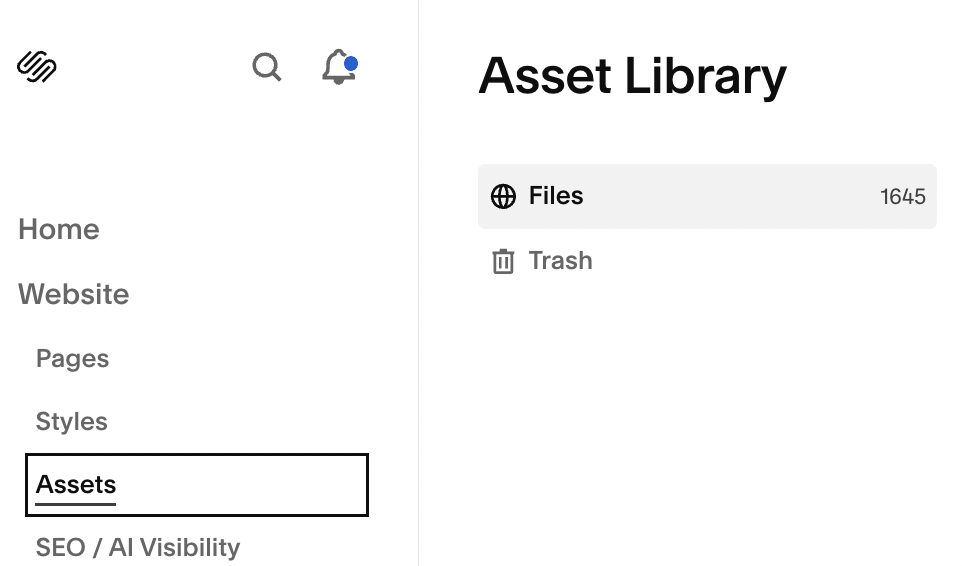
Go to:
Website → Assets
From here you can:
• See every file you have uploaded
• Download individual images
There isn’t a bulk download option, which is really annoying. The best workaround is to be proactive.
Whenever you upload:
• Book covers
• Press images
• Promotional graphics
Make sure you also store the original files somewhere sensible. A folder on your computer, Dropbox, Google Drive. Anywhere that is not ‘only on the website’.
If your site has been around for a while, it is worth setting aside half an hour to download the most important images manually and store them safely.
Backing up your mailing list (this is the big one)
Your email list is far more valuable than your website!
If you use Squarespace Email Campaigns, Mailchimp, ConvertKit, or any other provider, you should already have access to export options.
Make a habit of exporting your subscriber list every few months.
In Squarespace you can do this by going to:
Contacts
… then clicking on the three dots in the top right hand corner and selecting Export All Contacts


This will download a CSV file of everyone on your mailing list.
If you use a different platform to manage your newsletter, look for a similar instruction such as:
• Export contacts
• Download CSV
And then save that file somewhere secure.
If everything else disappeared tomorrow, you could rebuild your website. Rebuilding an email list from scratch is much harder.
Saving your custom code
If you have added any custom CSS or code snippets, back them up.
Check:
• Website → Pages → Custom Code → Custom CSS
• Settings → Advanced → Code Injection
Copy everything into a plain text file (not Word, as this will corrupt the code) and save it somewhere safe.
Even small tweaks can take hours to recreate if you forget what you did.

Backing up your design and structure
This part is often overlooked.
Your site structure matters. Navigation labels. Page order. Section layouts. Fonts and colours.
Again, there’s no easy way to export this information, so you’ll have to document it instead.
A very simple approach:
• Take screenshots of key pages (I use the Go Full Page extension within Chrome)
• Screenshot your navigation menu
• Make a note of font choices and colour codes
This is especially useful if you ever redesign or accidentally delete something you loved.
Creating duplicates of your site inside Squarespace
There is one more very practical safety net that is well worth knowing about, and it lives entirely inside Squarespace.
You can duplicate an entire site.
This creates a complete copy of your website at that point in time: pages, design, content, everything.
If something goes wrong, you have a snapshot you can refer back to.
I do this for every client once I have finished building their site. Because I am a Squarespace Circle member, the duplicate sites I create last for a full year.
That means I always have a usable backup of my clients’ websites for twelve months after launch, just in case.
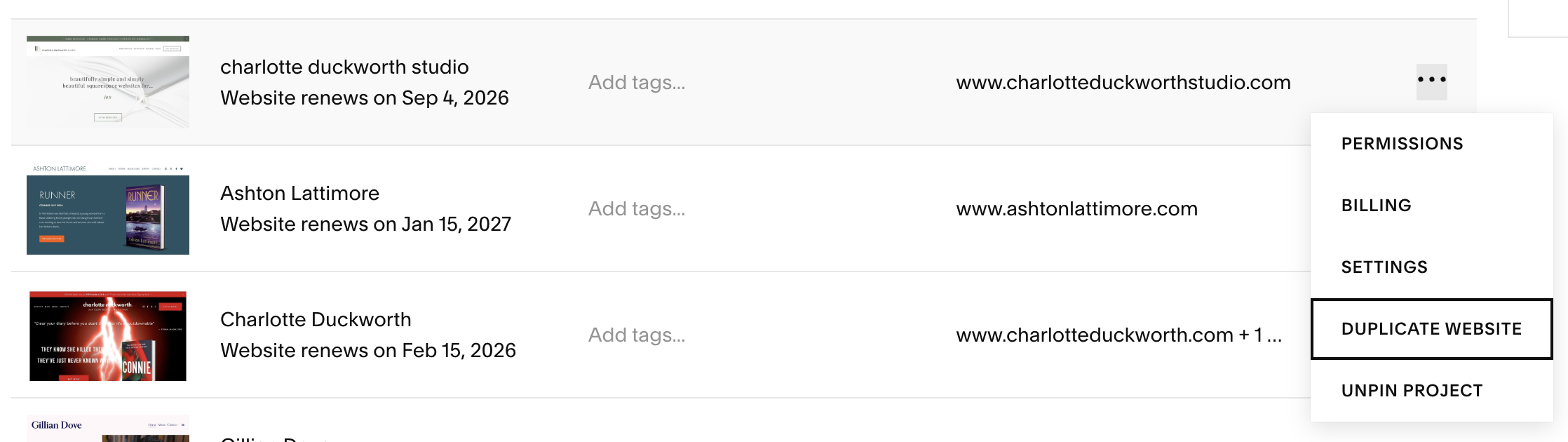
If you are building your own site, you can still duplicate it yourself. The difference is that if you are not part of Squarespace Circle, those duplicates only last for two weeks.
That sounds short, but it can still be useful. If you’re about to make big changes, redesign something, or experiment with layout or copy, create a duplicate first.
If you’re worried about the two-week limit, you can simply duplicate the duplicate before it expires. I know it’s slightly ridiculous, but it works.
Think of site duplication as a safety buffer rather than a long-term archive. It’s especially helpful for protecting against accidental deletions or changes you immediately regret.
Using third-party backup tools
There are a few third-party services that claim to back up Squarespace sites by crawling and saving them.
They can be useful as an extra layer of reassurance, but they are not perfect. Most of these tools create a static snapshot of your site rather than a fully editable backup of your content.
That means you would not be able to restore your site inside Squarespace with a single click. You would still need to manually rebuild pages if something went wrong.
Think of third-party backups as a safety net rather than your main strategy. They are fine to use alongside the methods above, but they should not replace saving your content, images, and email list properly.
How often should you back up?
There’s no need to obsess over this!
A sensible schedule for an author website looks like this:
• Blog export: every 3 to 6 months
• Mailing list export: every 1 to 3 months
• Content document update: whenever you make major changes
• Images: store originals as you upload them
Set a recurring reminder if you are the sort of person who forgets until disaster strikes. Which is most of us.
What Squarespace already does for you
It is worth saying this clearly: Squarespace is not fragile.
They handle:
• Server-level backups
• Security updates
• Uptime and infrastructure
If you delete a page accidentally, Squarespace can sometimes restore it if you contact support quickly.
Please don’t worry too much about this stuff!

On a budget but need an author website?
The DIY Author Website Course is just for you! →
The calm takeaway
Backing up your Squarespace author website does not need to be complicated or technical.
There’s no need for plugins. You just need to:
• Save your words
• Save your images
• Save your email list
• Save anything custom you have added
…somewhere safe so you know you have a copy just in case.
Do that, and you will be covered! 😃
Save 10% off your first year’s Squarespace subscription using code CHARLOTTE10
More posts like this:
